Within Sendcloud you can work with multiple Brands. You can use Brands to personalize features such as the returns portal and tracking messages, and to display your logo on labels.
Branding will be applied according to the Sender Address you select. This means that a Sender Address is linked to a brand. And this is also how you can work with brands in Business Central. Brands and Sender Addresses are maintained via the Sendcloud portal, and can be imported into BC. Both options can be found in the Sendcloud menu under Master Data.

In the screenshot below you can see that we have 5 Sender Addresses, which are linked to 2 different Brands.

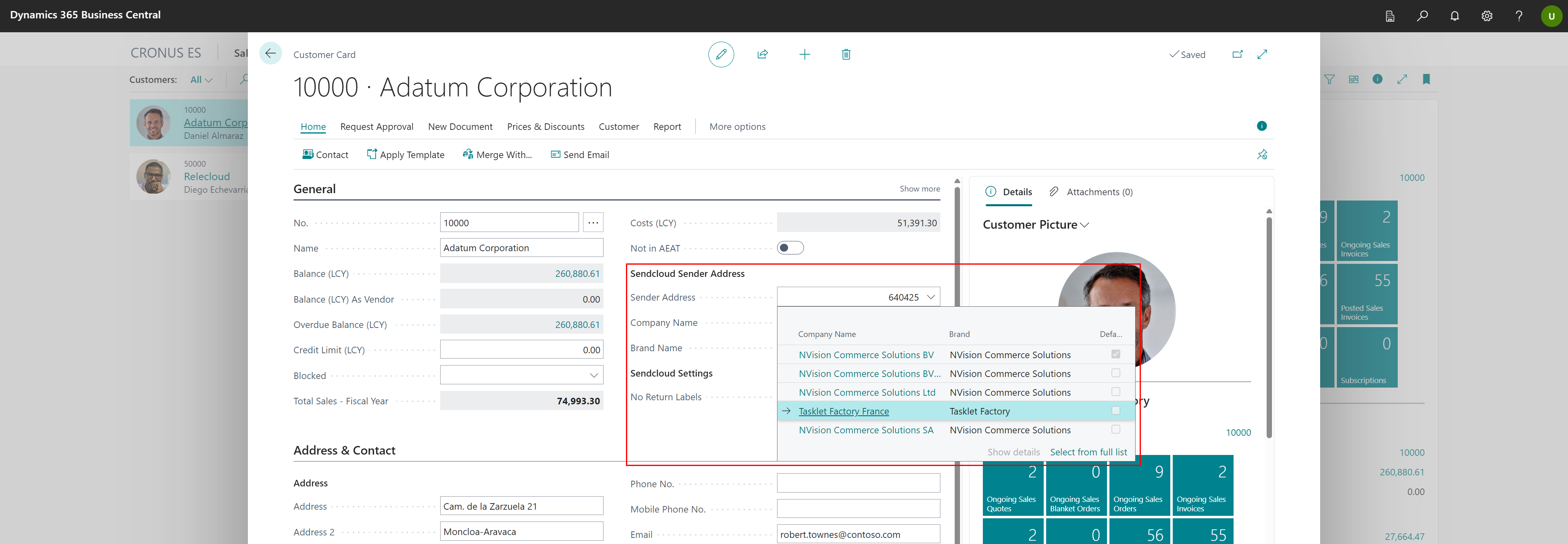
Once imported, and if you have more that 1 Sender Addres, you can already specify a Sender Address on the Customer Card.
By selecting a Sender Address on the customer card, this will automatically be applied when creating a Sales Order for this customer.
The selected Sender Address is automatically applied on the Sales Order page. But you can also still select or adjust it in this stage.
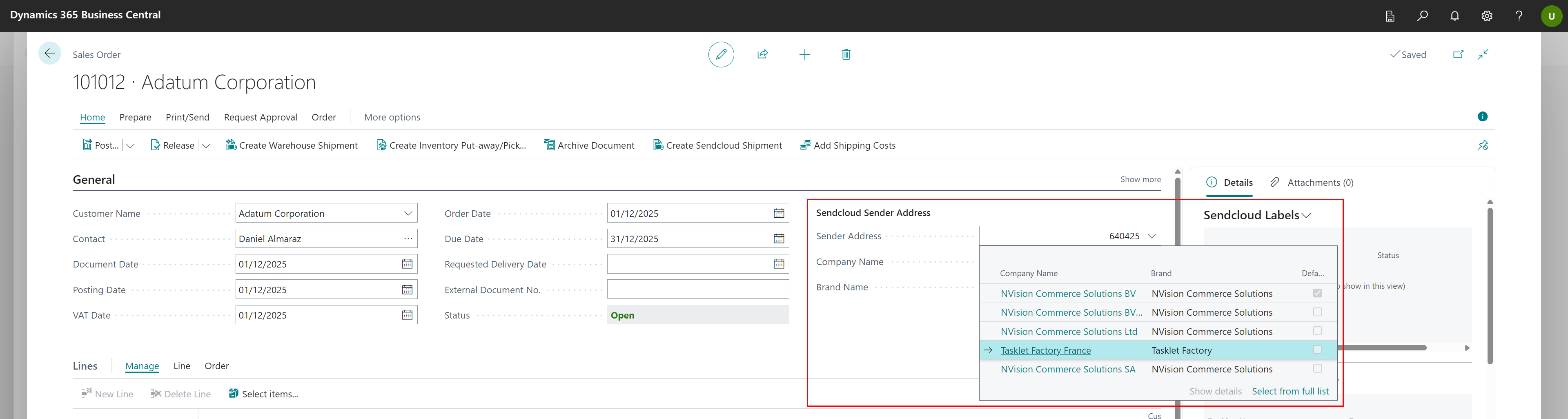
The selected address will be applied to the Sendcloud shipment document, ensuring that all communication received by the customer displays the correct branding.
Was this article helpful?
That’s Great!
Thank you for your feedback
Sorry! We couldn't be helpful
Thank you for your feedback
Feedback sent
We appreciate your effort and will try to fix the article