The Table Setup lets you configure how Commerce 365 for Magento handles changes for Business Central tables. You can use the page to enable or disable monitoring, control queueing, and configure inventory-trigger behavior.
- Each record on the page represents a Business Central table.
- In Active and Background integration mode, the Monitoring section is available and Last Queue Load is hidden.
- In Passive mode, Last Queue Load is available and the Monitoring section is hidden.
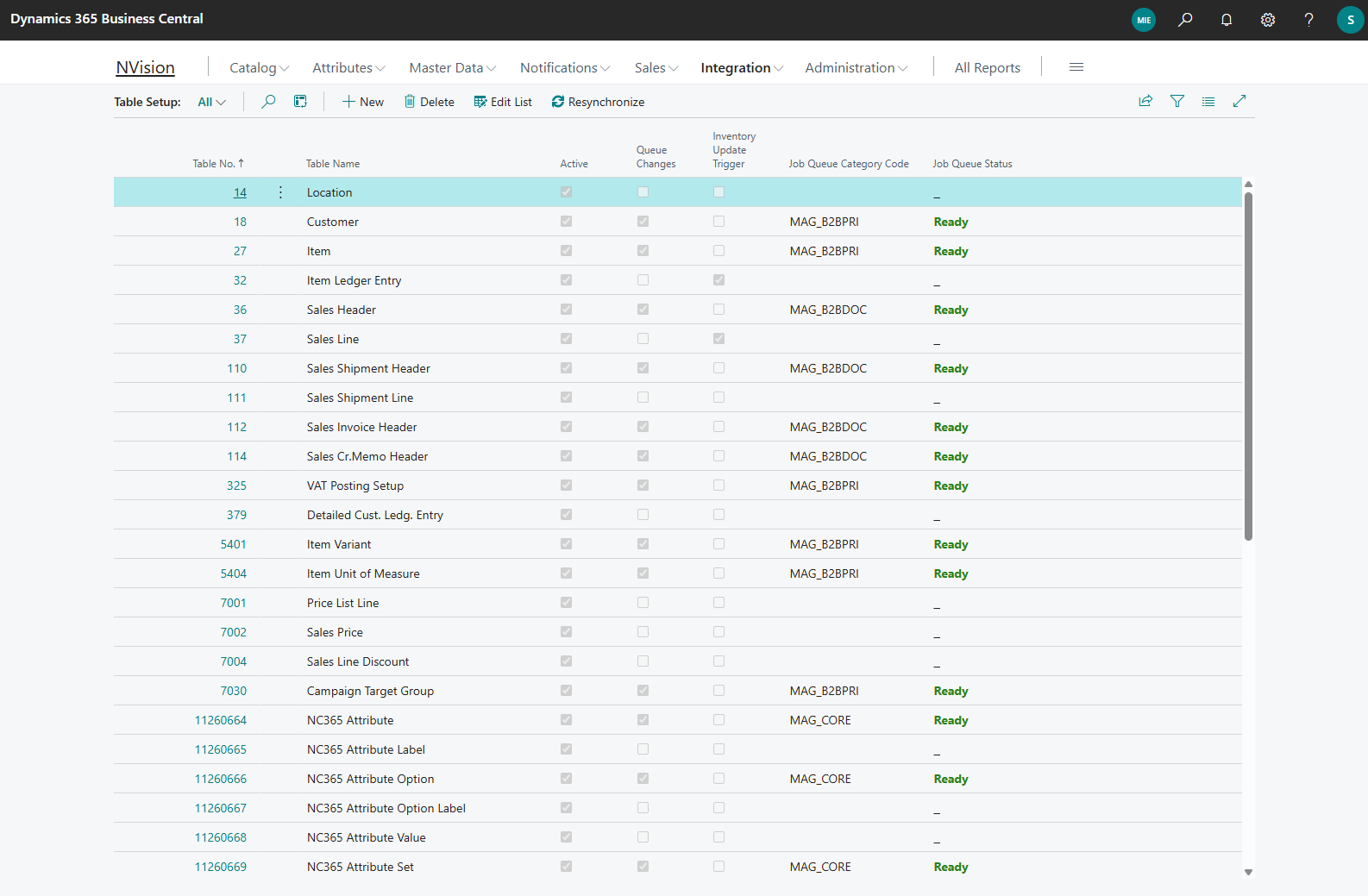
Fields
General
| Table No. | Specifies the Business Central table that this integrated entity represents. When you select a table for a new record, Commerce 365 assigns a default Priority if no priority has been assigned yet. |
| Table Name | Shows the name of the selected table. This value is filled automatically from Table No. and is read-only. |
| Job Queue Category Code | Specifies the job queue category that should process this entity. Use this field when you want separate job queue entries to synchronize different groups of entities independently. |
| Priority | Shows the processing priority for this entity. Lower values are processed first. The value is assigned automatically when the entity is created, and the field is read-only. |
| Active | Specifies whether Commerce 365 monitors this table. If you clear this field, the entity is ignored during synchronization processing. |
| Queue Changes | Specifies whether detected changes for this table are added to the synchronization queue. Enable this field when changes in the table must be synchronized to Magento. |
| Last Queue Load | Shows the date and time when the table was last scanned for changes in Passive integration mode. This field is available only when the integration method is Passive. |
| Monitor Insertions | Specifies whether new records in the selected table are monitored for synchronization. |
| Monitor Modifications | Specifies whether updates to existing records in the selected table are monitored for synchronization. |
| Monitor Deletions | Specifies whether deleted records in the selected table are monitored for synchronization. |
| Monitor Renames | Specifies whether record renames in the selected table are monitored for synchronization. |
Inventory
| Inventory Update Trigger | Specifies whether changes in this table trigger inventory recalculation. When you enable this field, Commerce 365 tries to fill the related field-number mappings automatically. When you disable it, the inventory field mappings are cleared. You cannot enable this option for the NC365 Inventory Per Location table. |
| Location Code Field No. | Specifies which field in the selected table contains the location code. Use the lookup to choose a field from the table. This field is editable only when Inventory Update Trigger is enabled. |
| Item No. Field No. | Specifies which field in the selected table contains the item number. Use the lookup to choose a field from the table. This field is editable only when Inventory Update Trigger is enabled. |
| Variant Code Field No. | Specifies which field in the selected table contains the variant code. Use the lookup to choose a field from the table. This field is editable only when Inventory Update Trigger is enabled. |
| Filter 1-4 Field No. | Specifies the field number to evaluate for Filter 1-4. Use the lookup to choose a field from the selected table. This field is editable only when Inventory Update Trigger is enabled. |
| Filter 1-4 Field Name | Shows the name of the field selected in Filter 1-4 Field No. This value is filled automatically and is read-only. |
| Filter 1-4 Value | Specifies the value that the selected field must match for the inventory trigger to apply. |
Actions
Resynchronize
Queues all records in the selected integrated entities for synchronization. When you choose the action for multiple selected rows, Commerce 365 processes each selected entity in turn. Only active entities with Queue Changes enabled are queued.
Related tasks
- Open a row to view or change detailed settings on the Integrated Entity Card page.
- Choose Job Queue Status to review or create the related synchronization job queue entry.
- Choose Resynchronize when you need to queue all records from one or more entities again.
Was this article helpful?
That’s Great!
Thank you for your feedback
Sorry! We couldn't be helpful
Thank you for your feedback
Feedback sent
We appreciate your effort and will try to fix the article